
Minecraft coding tutorials: Pixel Art
In this tutorial, you will learn how to create Pixel Art in Minecraft using Microsoft MakeCode.
Part 1: Creating a Creeper
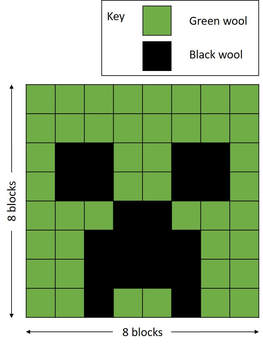
Creeper template.
1. Launch the Microsoft 'MakeCode' editor and create a new project.
2. Select the 'PLAYER' tab (A). Click and drag the 'on chat command' block (B) onto a blank canvas and change the text option to 'run' (see image below).
2. Select the 'PLAYER' tab (A). Click and drag the 'on chat command' block (B) onto a blank canvas and change the text option to 'run' (see image below).

|

|
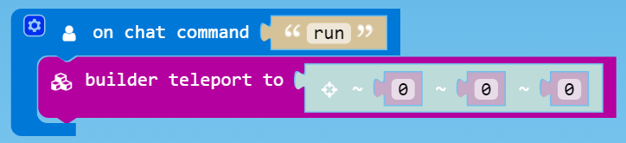
3. Select the 'BUILDER' tab (C). Click and drag the 'builder teleport to' block (D) and attach it to the 'run' block (see image below).

|
|
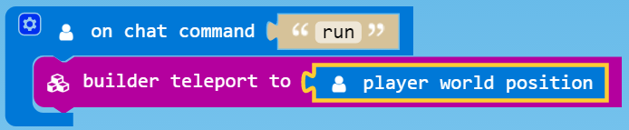
4. Select the 'BUILDER' tab (E). Click and drag the 'builder teleport to' block (F) and attach it to the 'run' block (see image below).

|
|
5. Next, let's move the builder forward.
Select the 'BUILDER' tab. Click and drag the 'builder move' block and attach it to the 'builder teleport block' block. Change the forward value to 10 (see image below).
Select the 'BUILDER' tab. Click and drag the 'builder move' block and attach it to the 'builder teleport block' block. Change the forward value to 10 (see image below).

6. Next, let's add our first line of pixels (blocks).
Select the 'BUILDER' tab. Click and drag the 'builder move' block and attach it to the end of your code. Change the direction to 'up' and change the up value to 8 (see image below).
Select the 'BUILDER' tab. Click and drag the 'builder move' block and attach it to the end of your code. Change the direction to 'up' and change the up value to 8 (see image below).

Select the 'LOOPS' tab. Click and drag the 'repeat' block and attach it to the end of your code. Change the loop value to 8 (see image below).

Select the 'BUILDER' tab. Click and drag the 'builder move' block and attach it to 'repeat' block. Change the direction to 'right' and change the right value to 1 (see image below).

Select the 'BUILDER' tab. Click and drag the 'place' block and attach it to 'builder move' block (see image below).

Select the 'BLOCKS' tab. Click on 'MORE' (G). Select and drag the 'wool of color' block and attach it to 'place' block. Change the wool color to 'green' (see image below).

|

|
7. Now, let's move down to the next line (line 2).
Select the 'BUILDER' tab. Click and drag the 'builder move' block and attach it to the end of your code. Change the direction to 'left' and change the left value to '8' (see image below).
Select the 'BUILDER' tab. Click and drag the 'builder move' block and attach it to the end of your code. Change the direction to 'left' and change the left value to '8' (see image below).

Select the 'BUILDER' tab. Click and drag the 'builder move' block and attach it to the end of your code. Change the direction to 'down' and change the down value to '1' (see image below).

8. Finish coding your Pixel Art Creeper by adding the following lines:
|
Line 1: Green 8
Line 2: Green 8 Line 3: Green 1, Black 2, Green 2, Black 2, Green 1 Line 4: Green 1, Black 2, Green 2, Black 2, Green 1 Line 5: Green 3, Black 2, Green 3 Line 6: Green 2, Black 4, Green 2 Line 7: Green 2, Black 4, Green 2 Line 8: Green 2, Black 1, Green 2, Black 1, Green 2 |

|
5. Open Minecraft and click on 't' top open the chat window.
6. Type in 'run' in the command line (followed by the Enter key) to run your code.
6. Type in 'run' in the command line (followed by the Enter key) to run your code.

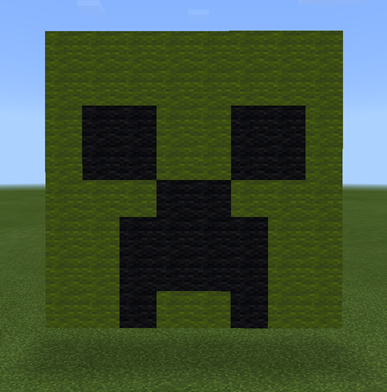
Creeper Pixel Art
Resources

| minecraft-creeper.mkcd |
Creeper Pixel Art source code.
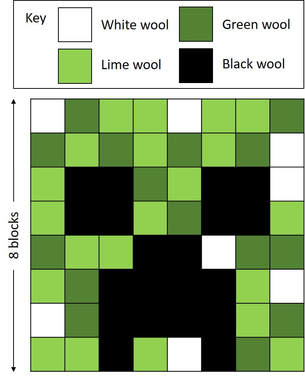
Challenge 2
Try improving your Creeper Pixel Art by adding more colours. For example:
Challenge 2
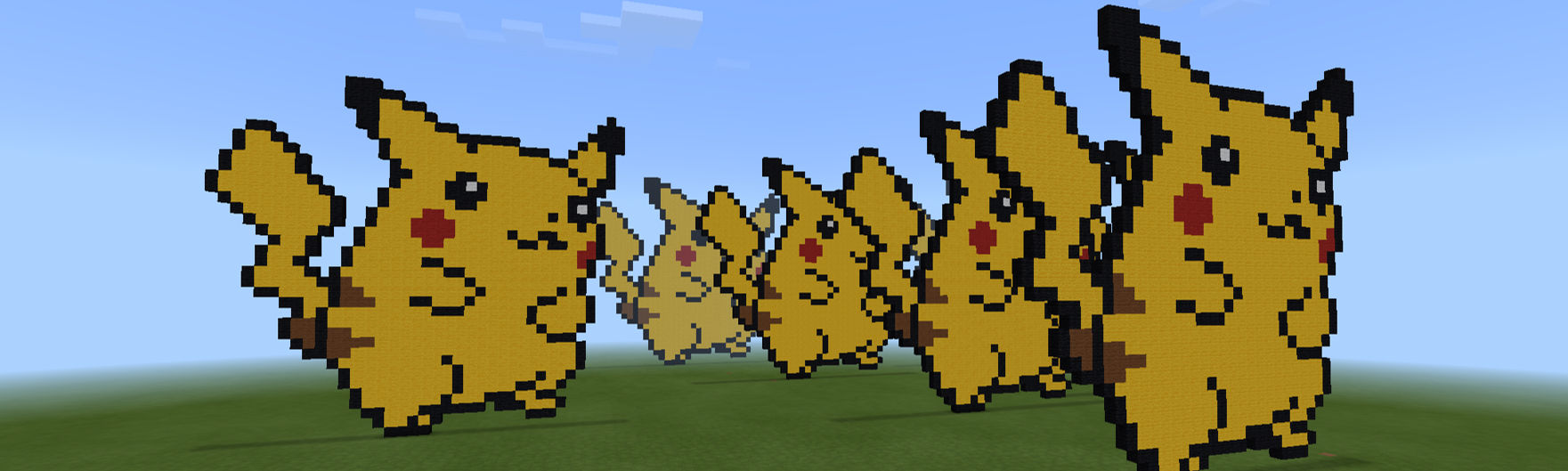
Have a go at coding your own Pixel Art work. Here's an example of what is possible:
Pikachu Pixel Art created entirely out of code.
Resources
| minecraft-pikachu.mkcd |
Pikachu Pixel Art source code.
You may also be interested in:
This work is not affiliated in any way with Mojang AB. Minecraft is a trademark of Mojang AB. The Minecraft Name, the Minecraft Brand and the Minecraft Assets are all property of Mojang AB or their respectful owner. This work adheres to the terms set out by Mojang AB at https://www.minecraft.net/terms
This work is not affiliated in any way with Mojang AB. Minecraft is a trademark of Mojang AB. The Minecraft Name, the Minecraft Brand and the Minecraft Assets are all property of Mojang AB or their respectful owner. This work adheres to the terms set out by Mojang AB at https://www.minecraft.net/terms
